We had in place a daily process where we imported item information from SAP into an Items table in a SQL 2005 database. The SAP information was placed in a .txt file and then bulk inserted into the table using the T-SQL Bulk Insert command.
We were then asked to modify this process. Instead of completely overwriting the Items table in the database, we needed to merge the SAP item information into the Items table. That is, we needed to update and insert rows in the Items table using the SAP .txt file as input.
If the database was an SQL 2008 database, we would have used the Merge command to merge the information; however, we were using SQL 2005. Below are the steps and T-SQL I created to simulate the Merge command.
1) Created a replica of the Items table called Load_Items
2) Ran the following T-SQL
-- Load SAP Item information into Load_Items table with Bulk Insert command.
Truncate table Load_Items
BULK INSERT Load_Items
FROM '\\servername\SAP_Items.txt'
WITH (FORMATFILE = ‘\\servername\SAP_Items.FMT')
/*
Merge updated and new Item information into Items table by deleting rows in the Items table that have the same key value (Item_Code) as that
in the Load_Items table and then insert those rows back (update) plus any new rows (insert) from the Load_Items table.
*/
Delete from Items
Where Item_Code In (Select Item_Code from Load_Items)
Insert Into Items
Select * from Load_Items
c22e464c-d01c-4378-bc93-9a4c493392f6|0|.0
I was querying an Order Header table and was coming up with confusing results (the result set had too many rows). The table used an Identity column as the primary key. The table also contained an order confirmation number column that should have been unique. To make a long story short, the reason I was getting confusing results was because there were rows in the Order Header table that contained the same order confirmation number. This happened when I imported a more recent version of the Order Header table from another database, but neglected to also import a more recent version of the table that controlled the generation of order confirmation numbers. When I then created new orders, the new Order Header rows were created using older confirmation numbers, and as a consequence, duplicate order confirmation numbers were entered into the table. This scenario would NOT have occurred if the order confirmation number was the primary key. An error would have occurred when I tried to add a new order that had a confirmation number that already existed in the Order Header table.
Here are some links to choosing a primary key that I found interesting.
http://databases.aspfaq.com/database/what-should-i-choose-for-my-primary-key.html
http://weblogs.sqlteam.com/jeffs/archive/2007/08/23/composite_primary_keys.aspx
http://decipherinfosys.wordpress.com/2007/02/01/surrogate-keys-vs-natural-keys-for-primary-key/
http://www.mssqltips.com/tip.asp?tip=1600
6a163e6b-dc86-4b98-8875-609bf916e831|2|1.0
-
I made some changes to .html files on a production web site, yet when I went to my computer, the changes did not take effect (using IE 7). I then cleared cache (Tools -> Internet Options -> Browsing History -> Delete). Clearing cache did not work either. The changes did not show up. I then reloaded the start page by bypassing cache. To bypass cache, hold the Cntrl key and press F5 or hold the Cntrl key and press the Refresh button in the toolbar. Bypassing cache solved the problem. My changes showed up.
-
To avoid the security warning you get after copying your Microsoft Access 2007 program to a new directory, copy your Access program to the C:\Program Files\Microsoft Office\Office12\ACCWIZ folder.
-
Microsoft SQL Server 2008 R2 Report Builder 3.0 provides an intuitive report authoring environment for business and power users. It supports the full capabilities of SQL Server 2008 R2 Reporting Services. The
download provides a stand-alone installer for Report Builder 3.0.
a038f540-5e8b-43f4-ab8a-3bdee57484c4|0|.0
- From Andy Warren, use Scope_Identity() function instead of @@Identity when retrieving identity for most recently added row to a table.
Scope_Identity is the best way to get the identity value of a just inserted row. It's a drop in replacement for @@Identity and a good way to make sure that you don't have problems in the future if someone adds a trigger that inserts into another table with an identity column. Also, some more information on the subject from David Hayden.
- I had linked an SQL table in Microsoft Access 2007. I could not make any edits to the table in Access. The fix? The SQL table did not have a primary key defined. Once I defined a primary key for the table in SQL, and then in Access updated the table in the Linked Table Manager (right mouse click on table in table objects), I was able to make edits to the table in Access. I found the solution here.
82dca6f9-8e13-419d-94d5-c555902c8ab1|0|.0
-
I had created a stored procedure that included bulk insert statements. The bulk insert needed to access .txt files from a secure folder. An SQL Agent ran the stored procedure under the sqlservice account. Before testing the SQL Agent, we modified the security settings of the secure folder to allow the sqlservice account to read from the folder. A test was run and the stored procedure generated an error stating that is could not access a .txt file in the secure folder. Why was the stored procedure unable to access the .txt file in the secure folder? It turns out in order for the new folder permissions granted to the sqlservice account to take hold, the SQL Server instance where the SQL Agent ran needed to be restarted. After we restarted the SQL Server instance, the stored procedure was then able to access the files in the secure folder.
-
From Pete Brown's blog, here is an excellent video by Jason Dolinger on MVVM.
51835f60-4fca-4335-a2cd-44b0330e2952|0|.0
I changed the name of a database in Microsoft Sql Server 2005. The database happened to be the default database for a user. The next time the user tried to connect to the SQL server instance, they received the following error message: Cannot Open User Default Database. Here is the fix.
SQL Server 2005
You can use the sqlcmd utility to change the default database in SQL Server 2005. To do this, follow these steps:
- Click Start, click Run, type cmd, and then press ENTER.
- Use one of the following methods, depending on the kind of authentication that the SQL Server login uses:
If the SQL Server login uses Microsoft Windows authentication to connect to the instance, type the following at the command prompt, and then press ENTER:
sqlcmd –E -S InstanceName –d master
If the SQL Server login uses SQL Server authentication to connect to the instance, type the following at the command prompt, and then press ENTER:
sqlcmd -S InstanceName -d master -U SQLLogin -P Password
Note InstanceName is a placeholder for the name of the SQL Server 2005 instance to which you are connecting. SQLLogin is a placeholder for the SQL Server login whose default database has been dropped. Password is a placeholder for the SQL Server login password.
- At the sqlcmd prompt, type the following, and then press ENTER:
ALTER LOGIN SQLLogin WITH DEFAULT_DATABASE = AvailDBName
Note AvailDBName is a placeholder for the name of the existing database that can be accessed by the SQL Server login in the instance.
- At the sqlcmd prompt, type GO, and then press ENTER.
- Custom Sort from Andy Warren. How to get United States to appear first in a drop down list of countries.
Select CountryName
From Countries
order by
Case when CountryName = 'United States' then 0 else 1 end,
CountryName
- I was having trouble parsing an Update query that was using an inner join. It turned out that I was missing the From clause in my update statement.
Update Tablename
Set Field1 = 100
Inner Join --Wrong
Update Tablename
Set Field1 = 100
Fom Tablename
Inner Join --Correct
-
In Sequel Server Reporting Services (SSRS),
how to hide a textbox (follow link, go to using Complex Expressions, about halfway down within Complex Expressions,
Hide a text box on the design surface...) based on a boolean field value in the recordset:
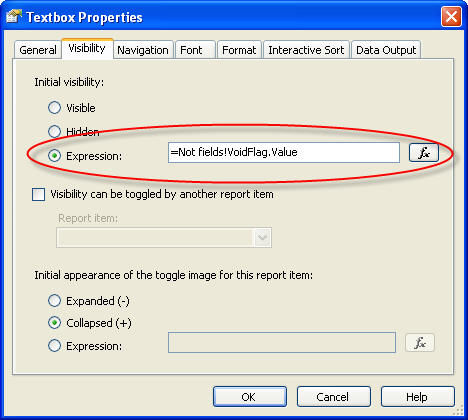
Open Textbox properties Dialaog box, click on Visibility tab, and enter =Not fields!VoidFlag.Value in the Expression box.
f1f9235c-9db3-4117-807e-7a9115743328|0|.0
I was setting up security for general users on a production Microsoft SQL database. The security configuration needed to allow the users to execute stored procedures called from a WPF application. Here are the steps I took using Windows Authentication.
1) At the database security level, I did not assign the users to any specific database roles, so the users, by default, were assigned to the public database role, which provides minimum permissions and privileges.
2) Granted Execute Permissions on the stored procedures: Grant Exec On StoredProcedureName To User/AcitveDirectoryGroup (We assigned the users to an Active Directory group). Below is some sql code to simplify the process:
SELECT 'GRANT EXEC ON ' + name + ' TO ' + '[ ActiveDirectoryGroupName ]'
FROM sysobjects
WHERE type = 'P' AND category = 0 And name not Like 'sp_%'
Order By name
3) Deny view capabilities to the public role:
Use DatabaseName
GO
DENY VIEW DEFINITION TO public;
Further Refinded:
DENY VIEW DEFINITION TO [ActiveDirectoryGroup]
GRANT VIEW DEFINITION TO [ActiveDirectoryGroup]
I subsequently found other ways to grant Exec privileges through the creation of a db_executor role.
a) Grant Exec at the database level through a db_executor role
CREATE ROLE db_executor
GRANT EXECUTE TO db_executor exec sp_addrolemember 'db_executor','YourUser'
b) Grant Exec at the schema level
GRANT EXECUTE on schema::dbo TO db_executor
576c4e04-f298-401e-a5f3-f9308097f253|0|.0
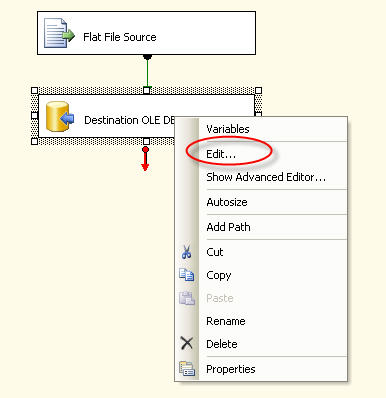
1) Connect a Flat File Source to OLE DB Source first. Connecting automatically will pre-fill some settings.
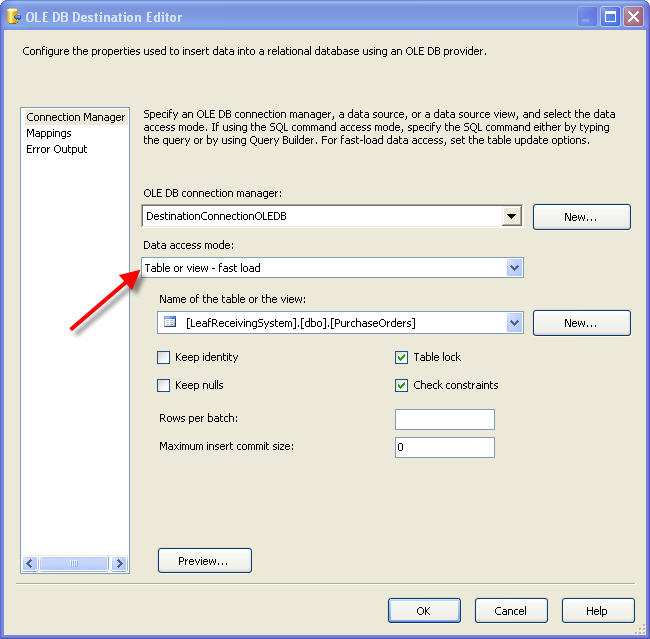
2) To speed processing between a Flat File and an OLE DB source, in the OLE DB Destination Editor, set the Data Access Mode to Table or view - fast load.
3) Methods to remove duplicates in the Flat File source
-
Add a sort and check remove duplicates check box.
-
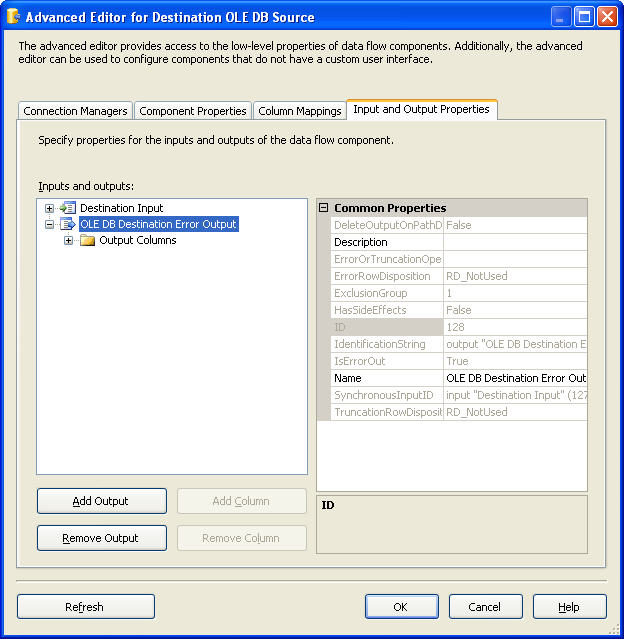
In OLEDB Destination, redirect duplicate errors to OLE DB Destination Error Output (use the Advanced Editor).
4) SQL Resources
5) Another way to remove duplicate rows through the use of the Partition By clause: http://www.sqlservercentral.com/articles/T-SQL/70807/
af13e393-9ed0-4fb9-a807-20a45d1c3a8e|0|.0
2ce675d7-a219-42e7-8cc0-5a63504a5909|0|.0
I like the one for the "as" Cast:
2. The As Cast
How many times have you seen code like this:
1: if (employee is SalariedEmployee)
2: {
3: var salEmp = (SalariedEmployee)employee;
4:
5: pay = salEmp.WeeklySalary;
6:
7: // ...
8: }
This is redundant because you are checking the type twice. Once in the is check and once in the cast. Whenever you find yourself going down this path, prefer the as cast. This handy cast will cast the type if the types are compatible, or return null if not:
1: var salEmployee = employee as SalariedEmployee;
2:
3: if (salEmployee != null)
4: {
5: pay = salEmployee.WeeklySalary;
6:
7: // ...
8: }
The code reads better without the ugly cast, and you avoid double-checking the type.
I also like the Stopwatch Class:
4. The Stopwatch Class
How many times have you wished to log how long a particular piece of code took to execute? Maybe you are trying to track average request time or some such metric, or maybe send a warning message when a stored procedure takes longer than 1 second to execute.
Well, you could do it with DateTime like so:
1: DateTime start = DateTime.Now;
2: SomeCodeToTime();
3: DateTime end = DateTime.Now;
4: Console.WriteLine("Method took {0} ms", (end - start).TotalMilliseconds);
But DateTime is imprecise for this sort of metric. You could also query the high resolution timer using Win32 API calls via PInvoke, but this is also very messy and more error prone.
So what’s a C# developer to do? Enter the Stopwatch class which is in the System.Diagnostics namespace. The Stopwatch class makes it clean and easy to use the high resolution timer through the convenience of a C# class:
1: var timer = Stopwatch.StartNew();
2: SomeCodeToTime();
3: timer.Stop();
4: Console.WriteLine("Method took {0} ms", timer.ElapsedMilliseconds);
Much more precise and very clean. Note there is a static factory method to create a Stopwatch and immediately start it. You also have the option of creating using new and then starting manually as you choose.
2c1ff719-0f2b-4dff-aa3a-44bb6f9f146d|0|.0